Showing posts with label fix. Show all posts

Saturday, February 1, 2014

Fix Operating System Not Found Error


Contents
  • 1. Symptoms of the problem
  • 2. Normal boot sequence
  • 3. Defect in the boot sequence which leads to Operating       System Not Found error
  • 4. How to fix Operating System Not Found error

1. Symptoms of the problem

When computer is powered up, an error message "Operating System not found" appears (white-on-black letters in text mode and blinking cursor):
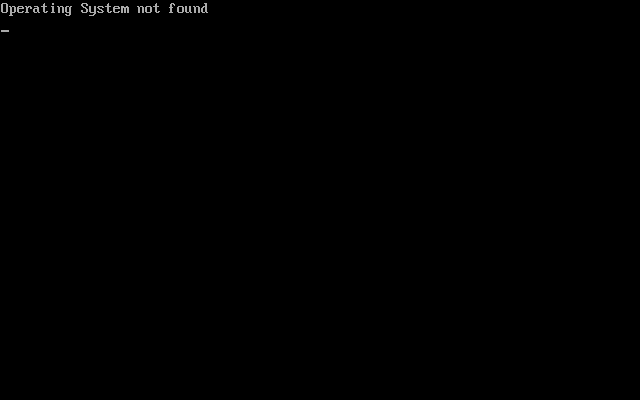
Boot Problem - Operating System Not Found

2. Normal boot sequence

Normally computer boots as shown below (Windows 7 boot sequence is shown as example):
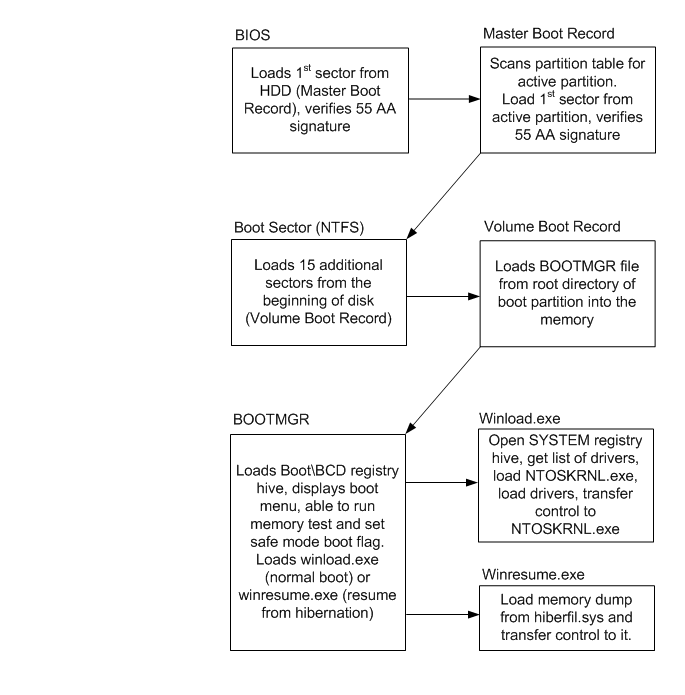
Normal boot sequence of Windows 7

  1. BIOS loads 1st sector from HDD (Master Boot Record), verifies 55 AA signature and transfers control to Master Boot Record.
  2. Master Boot Record scans partition table for active partition, then it loads 1st sector from active partition, verifies 55 AA signature, and transfers control to Boot Sector.
  3. Boot Sector loads 15 additional sectors from the beginning of disk (Volume Boot Record) and transfers control to first additional sector of VBR.
  4. Volume Boot Record loads BOOTMGR file from root directory of boot partition into the memory and transfers control to it.
  5. BOOTMGR loads Boot\BCD registry hive and displays boot menu. BOOTMGR is able to run memory test and set safe mode boot flag per explicit user request. But normally, it loads winload.exe when computer boots normally (cold startup) or winresume.exe (when computer resumes from hibernation).
  6. Winload.exe opens SYSTEM registry hive, gets list of drivers, loads NTOSKRNL.exe, loads drivers (*.SYS files) and transfers control to NTOSKRNL.exe.
  7. Winresume.exe loads memory dump from hiberfil.sys and transfers control to it.

3. Defect in the boot sequence which leads to Operating System Not Found error

Defect in the boot sequence which is a reason for Operating System Not Found error is shown below:
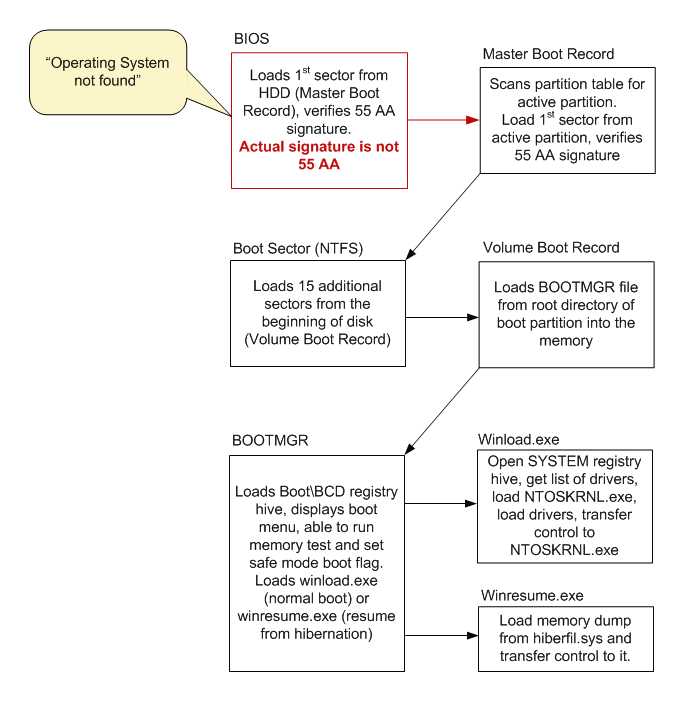
Reason for Operating System Not Found

  1. BIOS loads 1st sector from HDD (Master Boot Record), tries to verify 55 AA signature.
  2. Actual value of last two bytes of MBR is not 55 AA, so BIOS emits "Operating System not found" error message and tries to boot from the next boot device or halts machine.
  3. The rest of usual boot events does not happen.

4. How to fix Operating System Not Found error

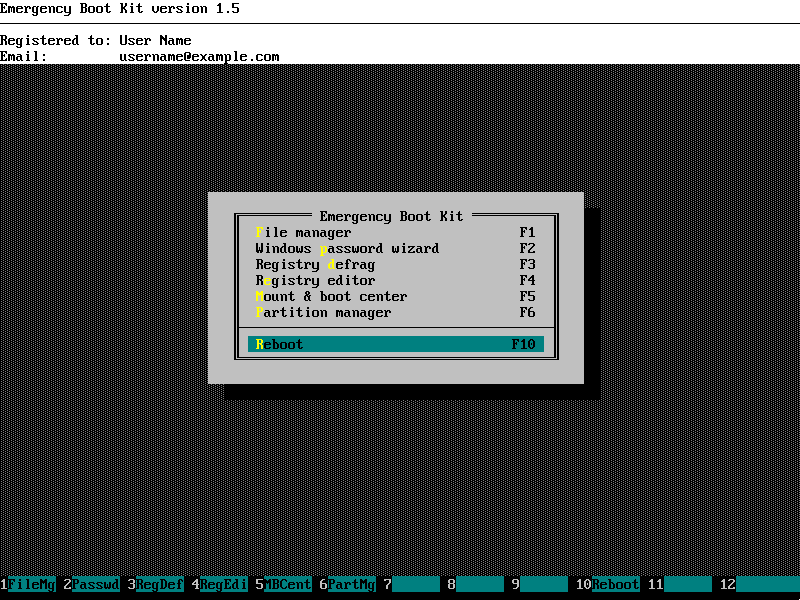
1) Download EBCD and burn it to CD/DVD according to the instructions, then set up your BIOS to boot from CD. You need full EBCD version to actually write changes to the disk, but it's recommended to try demo version first to make sure  there are no hardware incompatibilities.
2) Boot from EBCD, wait until the main menu appears.
Choose "Mount & Boot Center" in the main menu or press F5 and wait while EBCD scans all local disks for Windows installations
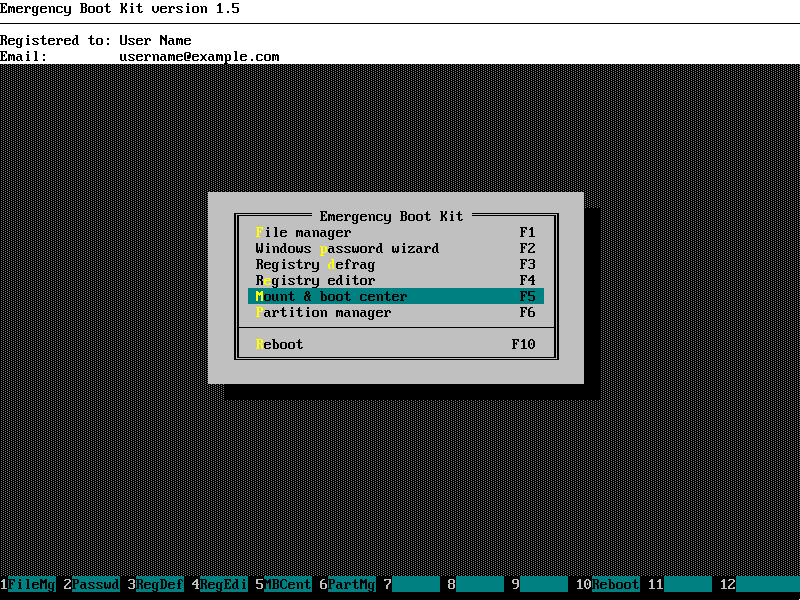
Operating System Not Found Fix with EBCD - Main Menu
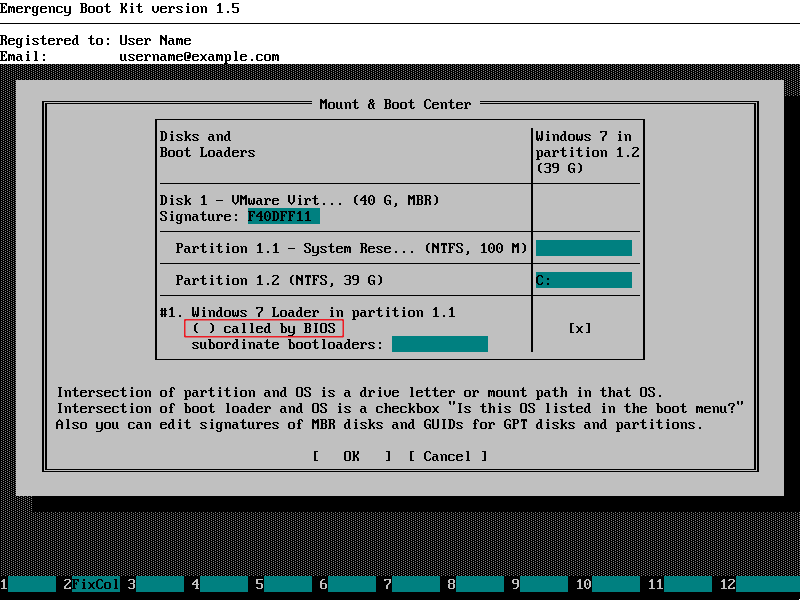
3) Find boot loader for your primary OS in the list. Please note that "called by BIOS" radiobutton is off:

Operating System Not Found Fix with EBCD - Bootloader is not called by BIOS
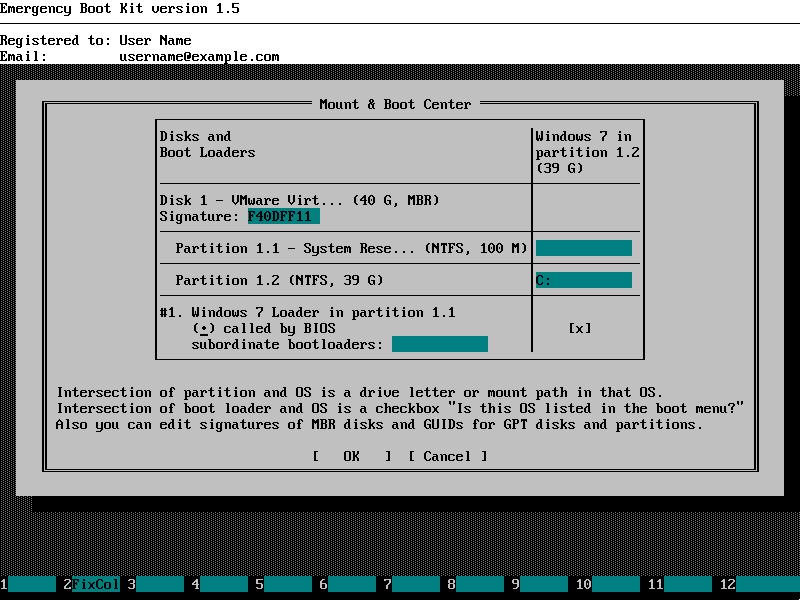
4) Click on the radio button "called by BIOS" for bootloader of your primary OS. It should be turned on now:
Operating System Not Found Fix with EBCD - Bootloader is now called by BIOS
5) Click OK to close the window and then choose "Reboot" in the main menu. 'Operating System Not Found' boot problem is fixed now.

Operating System Not Found Fix with EBCD - Probem Fixed, Rebooting
Please note: Mount & Boot Center verifies entire boot path from BIOS to the OS boot loader, so other boot problems may be automatically fixed at this point.

Friday, January 31, 2014

Fix the Column views in Windows Live Mail

Here at ComputerShopper.com, some of the editors migrated their home PCs from Windows XP or Vista to Windows 7, and we encountered a little glitch with Windows Live Mail that drove us bananas for the better part of an afternoon. We’d like to save you the same grief.

Our e-mails imported fine from XP’s Outlook Express, but we found that in the “Sent items” view in Live Mail, it was impossible to tell at a glance to whom we sent our mails. That’s because the columns in the default view didn’t include the one for the “To:” field. (Your mileage may vary. The missing “To:” field didn’t happen in another install we performed, but the next step—the grey-out issue—did.)

Simple enough, we thought—it’s easy to customize the view to show the “To:” field. You’d just hit Alt, go the View menu, choose the Columns item, and…hey wait a minute, the Columns menu option is greyed out! Hmmm. All we wanted was to restore this little column:

12-Tweak-Live-Mail

An afternoon of tweaking and searching later, we discovered that, strangely enough, repositioning the preview pane (the region of the screen that shows you a preview portion of a selected e-mail) was the only thing that would “un-grey” the Columns item on the View menu. This is likely a bug, and we’d expect it to be fixed before long. But how to work around it, for now?

In your Sent Mail view in Live Mail, hit Alt to bring up the menu bar, click View > Layout, and in the Layout dialog box, change the Reading pane (Mail) entry to At the bottom of the message list. (You can also uncheck the Show the reading pane box if you’d like to get rid of the pane altogether.) Hit OK, and you should be able to access the Columns entry in the View menu to tweak the columns that are displayed.